




Connect your bank account
With your bank connected, transactions come into Taxmo automatically. Less typing, and no missed payments.
Supported banks
ING, ABN AMRO, Rabobank, bunq, Knab, Triodos, ASN, SNS and Revolut. Airwallex has its own button: Connect Airwallex.
1. Start the connection
Go to Bookkeeping → Bank Feeds and click Connect Your First Bank. Choose your bank, then log in and give permission in your bank's own secure environment.
2. Your transactions come in
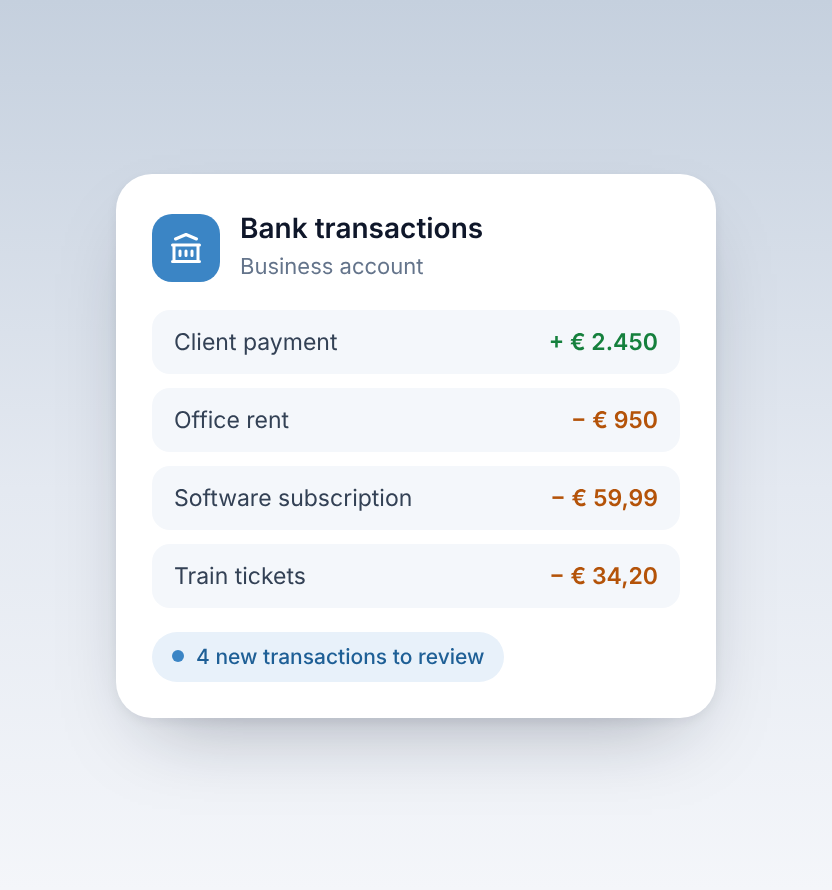
Once connected, your recent incoming and outgoing payments appear under To review.
3. Review and book
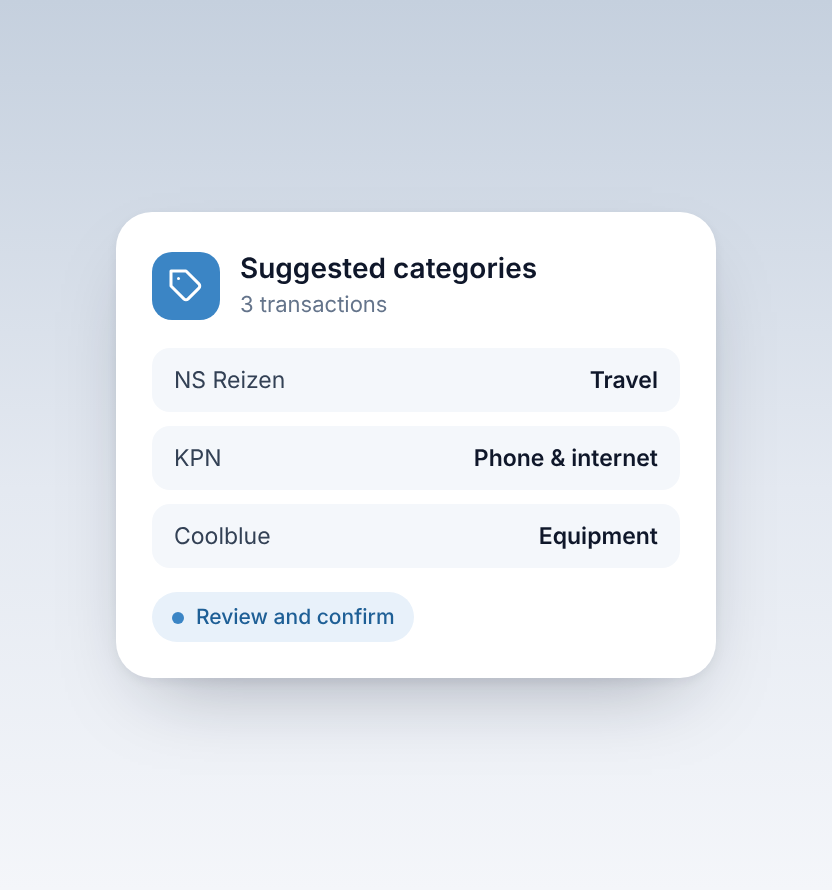
Each transaction comes with a suggested category, which you can change. Click Book to add it to your records. If Taxmo is confident about several transactions, use Approve All Confident to book them in one go.
Not sure about a transaction? Click Other → To sort out later. The same menu lets you mark a transfer between your own accounts, or a line that's a duplicate of another.
4. Match payments
Use Review matches to link incoming payments to your sales invoices, and outgoing payments to the receipts or purchase invoices behind them. Matched transactions keep your VAT and profit figures complete.
Credit cards and other accounts
- Credit cards can't be connected automatically. Click Add card and upload the statement. Taxmo reads the lines for you.
- Bank not listed? Download a statement file from your online banking and use Upload file. Lines that are already in Taxmo are skipped.
How many transactions?
Starter includes 50 bank transactions per month. Pro is unlimited.
Tip
Review new transactions every week or two. A few minutes regularly is much easier than a whole quarter at once, and your VAT return is ready when you need it.
More about bank transactions.


