




Turn a quote into an invoice
Write the details once, in the quote. Your client signs it online, and you turn it into an invoice in one click.
Before you start
Make sure your KVK number and BTW-id are filled in under Business in the menu. They appear on every quote and invoice.
1. Create the quote
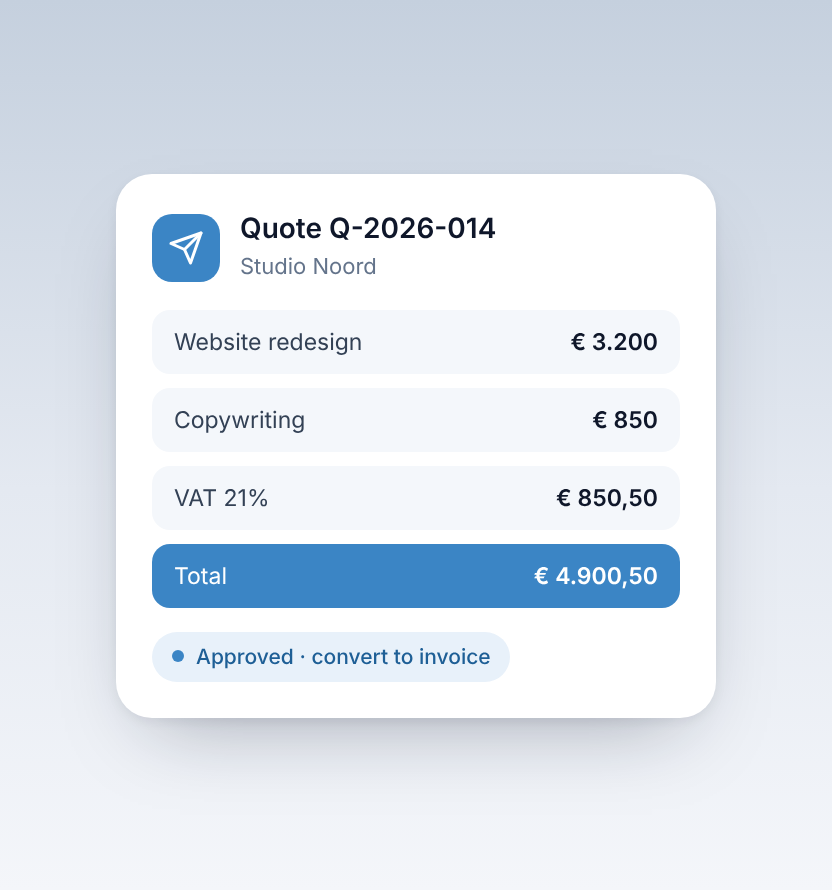
Go to Sales → Quotes and click New Quote. Add the customer, describe the work, enter the amounts and choose the VAT rate. Taxmo calculates the totals.
Fill in the customer's email address. Without it, you can't email the quote from Taxmo.
Check Valid until. It's set to 30 days from today. After that date your client can no longer sign.
Click Create Quote.
2. Send it for signature
Open the quote and click Email Quote. Your client gets a link where they sign with their finger or mouse and accept the quote. The status changes to Accepted once they've signed.
Did your client agree by phone or email instead? Click Accept yourself. After that, they can no longer sign through the link.
Sent the quote outside Taxmo? Click Mark Sent so the status is right.
3. Convert to an invoice
Convert to Invoice only appears once the quote is Accepted. Click it and confirm. Taxmo creates a draft invoice dated today with the same customer, lines and amounts, and books the income into the current quarter's VAT return.
Check the draft and send it.
Want part of the payment upfront? Use Invoice a deposit first. It's deducted from the final invoice when you convert.
Once converted, the quote is locked. Need a similar quote? Click Duplicate.
4. Follow up on payment
When the payment comes in, link it to the invoice in Bank Feeds so you always know what is still open.
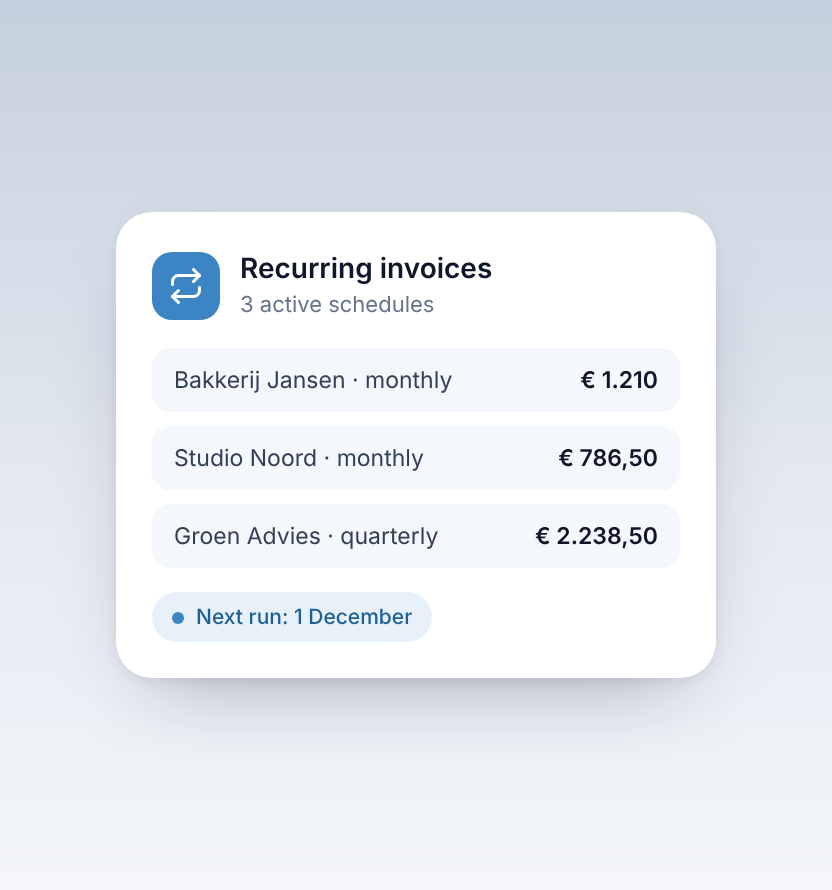
Same work every month? Use a recurring invoice instead. More about invoicing and quotes.


