

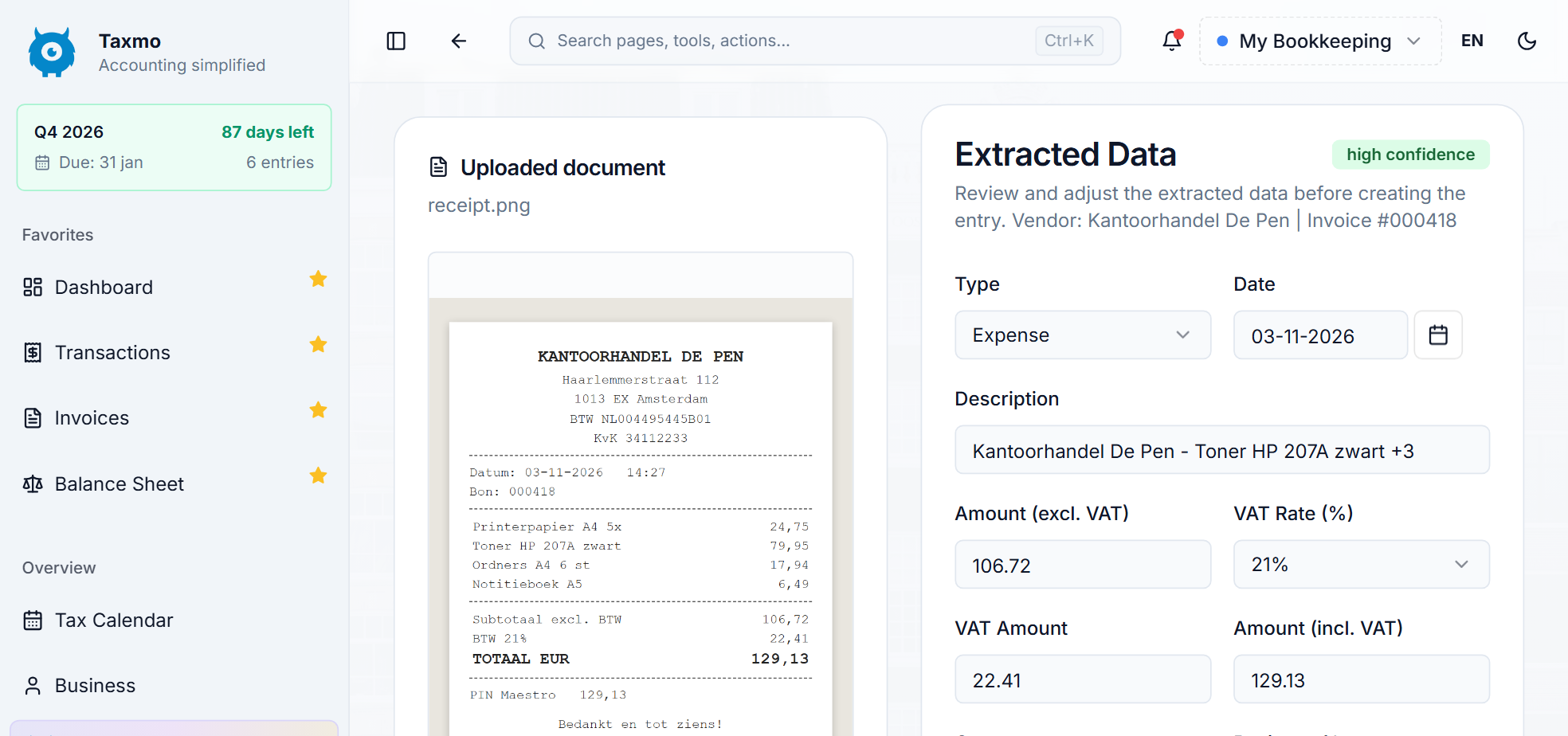




Scan a receipt with AI
Taxmo can read receipts for you, and you check the result.
1. Add the receipt
Choose whatever is easiest. Everything is under Receipts & documents in the menu.
- Mobile app: take a photo of the receipt in the Taxmo app (App Store / Google Play).
- Upload: go to Scan Receipt and upload a JPEG, PNG, WebP or PDF (max 10 MB), or pick it from Google Drive. The bar at the top shows how many scans you have left this month.
- WhatsApp: go to WhatsApp Expense Inbox, enter your phone number and click Send Verification Code to link it (once). Then send a photo of a receipt. No photo? Just type it, for example "Train ticket €23.50".
- Email: go to Email Invoice Inbox and click Activate Email Inbox first to get your own Taxmo address. Then forward invoices and receipts to it. PDF attachments work best.

2. Let Taxmo read it
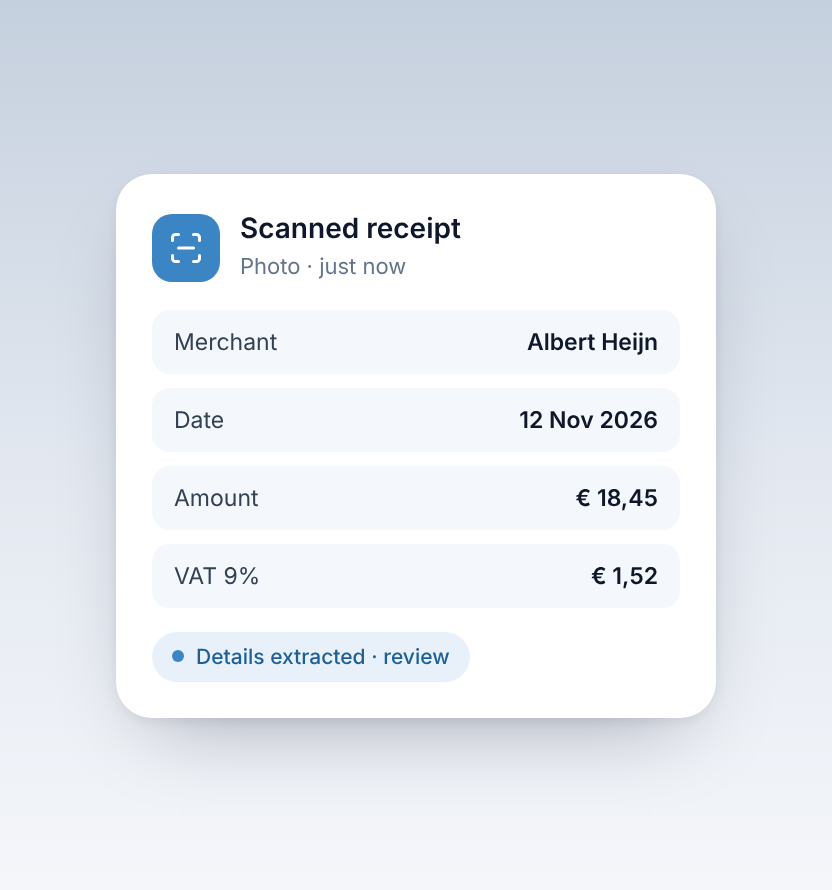
Taxmo picks up the supplier, date, amount and VAT, and suggests a category. Receipts sent by WhatsApp or email are booked automatically, and you get a confirmation with the details.
3. Check the details
Check the amount, VAT and category, and correct anything that isn't right. For WhatsApp and email receipts, check the entry under Transactions. AI can misread a blurry photo, so a quick check keeps your VAT return correct.
4. Match it to the payment
Link the expense to the bank transaction it belongs to in Bank Feeds. This keeps your records and your VAT return complete.
The receipt stays with the booking
The original is stored with the expense, so you have the proof ready if the Belastingdienst asks for it.
How many receipts?
How many receipts you can add per month depends on your plan. See pricing.
More about AI receipt scanning.


