




Set up a recurring invoice
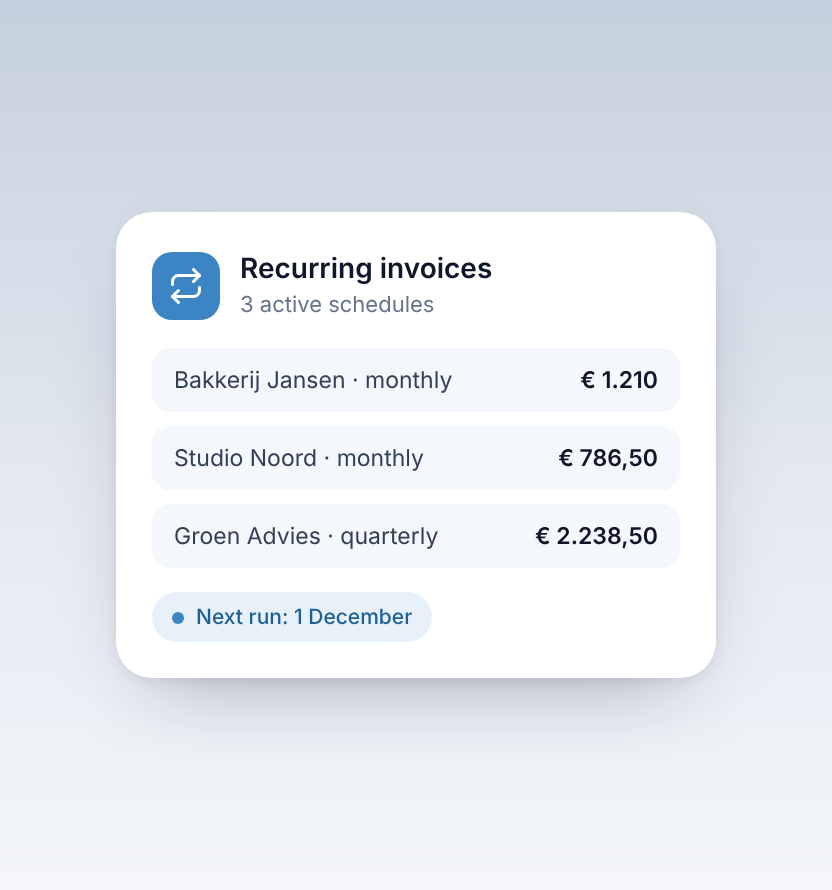
If you bill the same client the same amount on a schedule, set it up once as a recurring invoice. Taxmo then creates the invoices for you.
1. Create a template
Go to Sales → Recurring Invoices and click New Template.
2. Add the customer
Choose an existing contact, or enter the customer's name, email, address and VAT number.
3. Set the schedule
- Frequency: monthly, quarterly or yearly.
- Next generation date: the date the first invoice is created.
- End date (optional): leave it empty to keep invoicing until you pause the template.
- Payment terms: for example 30 days.
4. Add the invoice lines
Add a description, quantity, price and VAT rate for each line. Taxmo calculates the totals.
5. Choose what happens automatically
- Email invoice automatically: this is off by default. When it's off, each invoice is saved as a draft for you to check and send yourself. Switch it on to have each invoice emailed to your customer straight away.
- Auto-reminders: send payment reminders a set number of days after the due date, for example 7, 14 and 30 days.
- Auto-create income entry: on by default, so each invoice is booked in your records straight away.
Click Create Template. Taxmo creates the invoices on schedule.
Changing or stopping
If your rate or scope changes, edit the template and future invoices follow the new details. To pause, switch Active off. To stop for good, set an end date.
Keep an eye on payments
When the payment arrives in Bank Feeds, link it to the invoice so you can see at a glance who has paid.
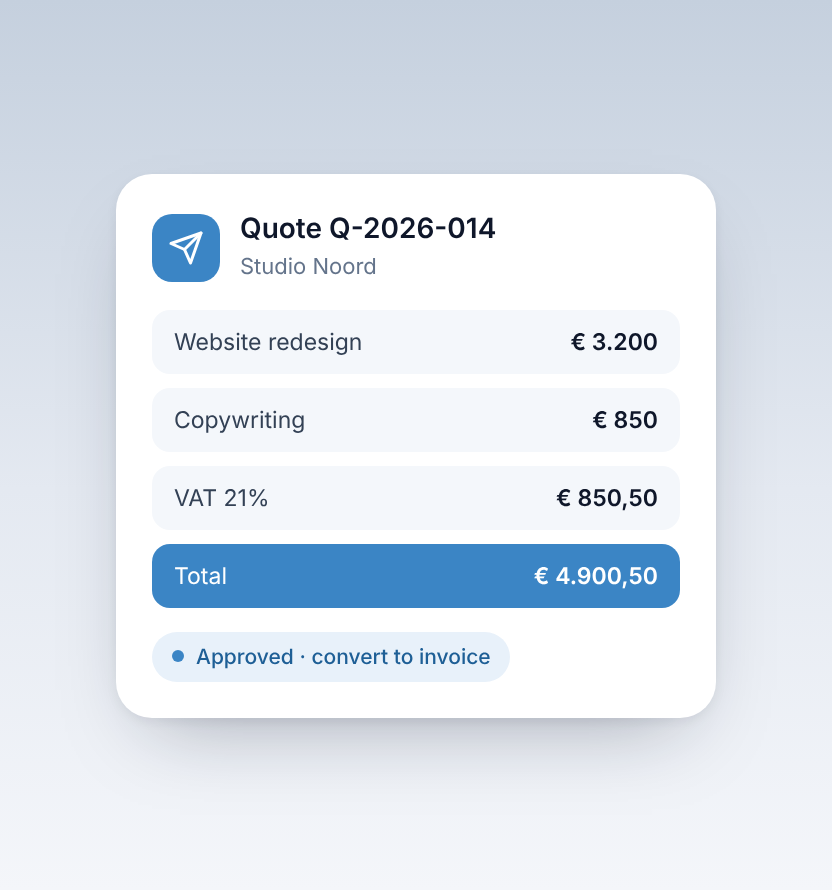
Billing a new client once? See How to turn a quote into an invoice.


